Mobile App: CMMS Mobile

The SpindleLIVE mobile app's Maintenance section significantly improves the workflow for maintenance personnel by providing a suite of tools for efficient task management directly from their devices. It enables personnel to log their status (break, lunch, meeting, or working), access detailed views of facility assets (including pending or down), and effectively prioritize maintenance activities. The app supports reviewing and managing flagged steps in preventive maintenance tasks, enhancing operational reliability by swiftly addressing issues. Furthermore, maintenance teams can initiate new work orders and complete preventive maintenance tasks, thereby minimizing asset downtime and boosting maintenance operation efficiency.
Quick Navigation
CMMS Mobile Requirements - Important Please Read
Subnet and Corporate Network Access
Navigating Maintenance Options
Upload Asset Images for Mobile App
Finding Assets using the Mobile App
Start or Join a Maintenance Incident
Pending and Down for Maintenance
Start or Join an Unscheduled Maintenance Incident
Work Orders, Preventive Maintenance, and My Tasks
Flagged Items - New Feature in CMMS Mobile
QR Codes - New Feature in CMMS Mobile
Scanning QR Codes with Mobile App
CMMS Mobile Requirements
The SpindleLIVE mobile app is designed with flexibility, offering various connectivity options to suit the diverse operational needs of maintenance personnel. Whether on-site or managing from afar, users will find a connectivity option that aligns with their requirements, ensuring efficient and effective maintenance management.
Access and Setup
App Store Download: No SpindleLIVE account is required for the initial app download. App store access requirements are independent of Spindle.
SpindleLIVE Account *Recommended*: Necessary for full app functionalities. Requires a corporate email address for setup, login, and password resets. Google, Yahoo, and other 3rd party emails are not accepted.
Non-SpindleLIVE Users: Maintenance personnel without a SpindleLIVE account can use the app with their unique personal ID (RFID), as found in Spindle Admin, like Spindle Login Stations or maintenance tablets.
Operational Modes
Local Access Mode: For on-site personnel, enabling direct communication with the Spindle Server without internet. Requires connection to approved corporate Wi-Fi or the Spindle Subnet.
SpindleLIVE Mode: For remote monitoring, such as during off-site business meetings, allowing users to stay informed without the capability to perform direct actions like equipment shutdowns.
Subnet and Corporate Network Access
Subnet Access: Focused, secure access to the Spindle Server without external internet. Uses RFID numbers or Spindle Login PINs as login keys.
To obtain the Spindle Subnet WiFi password please reach out to Spindle Support through the Spindle Resource Center or by email at support@spindlelive.com.
Corporate Network Access: Offers broader functionality through Wi-Fi, typically with internet access. Functions are similar to Subnet Access, using unique PINs or RFID for login. Ensures maintenance personnel access necessary data without full app capabilities, maintaining security and accessibility.
Watch a short video on this section:
Download the Mobile App
Getting started with the SpindleLIVE mobile app is straightforward and accessible for everyone. Whether you're on your phone or computer, scan, click, or tap the QR code provided to find more information and direct links to download the app from the appropriate app store on your phone. Alternatively, you can easily find the app by searching for "SpindleLIVE" in your app store.
You don't need to do anything else if you already have a SpindleLIVE username and password. Contact Spindle Support by email at support@spindlelive.com or through the Spindle Resource Center.
Maintenance
Upon launching the SpindleLIVE mobile app, you can access the Maintenance tab at the bottom of their screen, if not already there. This dedicated section is tailored to enhance the workflow and efficiency of daily maintenance activities.
Status Buttons
At the top of the Maintenance screen, users will find status buttons for Breaks, Lunch, Meetings, etc., when connected to the local Wi-Fi within the plant. These buttons allow for quick updates on personnel status and are accessible only within the plant's local Wi-Fi range, ensuring accurate tracking of on-site activities.
Status options are represented by colored circles, each denoting a specific status. These statuses serve as visual indicators to convey important information at a glance. The outer circle mirrors the associated color when a status is active, providing a clear visual cue. This intuitive design enhances user experience, making it easier to assess and act upon the current status quickly. Check out the animated image below to see these dynamic status indicators in action.
Navigating Maintenance Options
Maintenance personnel are presented with a variety of options to manage and monitor maintenance tasks and equipment efficiently:
Assets: Displays all equipment registered in Spindle Admin, including both Production and Maintenance assets, offering a complete overview for easy access and management.
Work Orders / Preventive Maintenance (PM): Provides access to all Work Orders and PMs, regardless of assignment, with comprehensive search functionality and filters. Creating new Work Orders is streamlined through the plus (+) symbol. Notably, Work Orders now bypass the approval process, enhancing operational efficiency.
My Tasks: Shows only the PMs and Work Orders assigned to the individual, enabling focused access to pertinent tasks. The Work Orders / PM section offers broader access to tasks assigned to others, designed for quick and easy navigation.
Pending / Down: This option alerts users to equipment within their plant that is either pending or down, requiring immediate attention to minimize downtime and maintain productivity.
Flagged for Review: Highlight steps within PMs or Work Orders flagged for Maintenance Management's review, ensuring critical issues are promptly addressed.
These enhancements to the Maintenance tab of the SpindleLIVE mobile app aim to streamline maintenance operations, from tracking equipment status to managing work orders, all designed to support the maintenance team's effectiveness and efficiency.
Assets
The Assets page within Spindle is designed to encompass all equipment configured for your specific location, ensuring comprehensive management and oversight of your operational tools. This includes traditional laundry facility equipment and could extend to yard management tools such as lawnmowers, snow blowers, and salt spreaders. Each asset listed can have associated Preventive Maintenance (PM) schedules or even Work Orders, making it a centralized hub for tracking and managing maintenance tasks. Whether you're looking to maintain operational efficiency inside your facility or ensure the upkeep of the surrounding premises, the Assets page on the mobile app provides a unified platform to manage and monitor all equipment and associated tasks effectively.
Upload Asset Images for Mobile App
We provide SpindleLIVE users the ability to upload their own images for assets. These actions must be performed from a computer. To ensure easy identification of assets, follow these steps to upload new images:
Access CMMS Admin
Login: Access the SpindleLIVE website from a computer with access to the desired image(s).
Navigate: Using the left sidebar to access CMMS and then select Admin.
Uploading Images
Default Page: Assets configured for your location will display by default.
Asset List: Locate the Images column. Click the image icon or the 'no image' icon to open the upload window. Here, you can upload or replace new images for each asset.
Finding Assets using the Mobile App
Searching for Assets
Search: The Assets page allows for searching by name (e.g., ironers, air compressors). Alternatively, scroll through the asset list for selection.
Asset Details and History
Details: Tapping on Details will display more information of the selected asset.
Historical Data: Tap History in the upper right corner with the ability to search or filter information.
Current Maintenance: If any maintenance is currently being performed, it will be displayed here. The option to join will be seen if connected to a local plant Wi-Fi. This is available for assets with active maintenance with assigned personnel.
Associated Assets
Associated Assets: Items like feeders and folders can be found here. If any Associated Assets exist, an option to display those is available.
Details: Tapping an associated asset, including upcoming maintenance schedules, reveals its details page.
Start or Join: If needed, you can start or join tasks right from here.
Start or Join a Maintenance Incident
Selecting a Lane: Connected to local plant Wi-Fi, find options for lane selection based on the equipment. Maintenance personnel logging into an Asset Lane indicates a whole equipment incident, whether scheduled or unscheduled. Depending on the equipment, you might find additional options on equipment such as 2 2-lane baggers and 3 or 5 5-lane ironers, indicating specific maintenance paths.
Perform General Maintenance
Setting Status and Tasks: After selecting the appropriate lane, options for setting Status and the Task will appear. Tasks vary by location and can include General Maintenance Tasks (GMT) like Waxing or janitorial duties such as Cleaning Breakrooms or Offices.
Watch a short video on this section:
Pending and Down for Maintenance
This approach ensures that pending and emergency maintenance tasks are adequately addressed, promoting a proactive maintenance culture. Our mobile app is designed to streamline the management of equipment issues, ensuring your production operations remain as efficient as possible. It provides a view of equipment statuses to facilitate quick and effective maintenance decisions. This aims to empower your team with the capability to monitor and actively participate in the maintenance workflow, enhancing the overall efficiency and responsiveness of your operations. Here's how to navigate and understand the maintenance needs:
Critical View: Positioned prominently within the Maintenance section, equipment issues are highlighted to prevent operational delays.
Status Indicators: Equipment listed under "Pending" or "Unscheduled Emergency Maintenance" is marked with specific indicators for quick status recognition:
Color-coded Indicators: Utilize yellow for pending issues and red for emergencies or confirmed maintenance needs, enabling at-a-glance recognition.
High-level Details: Displays the equipment name alongside the time elapsed since the status was assigned, presented in hours and minutes.
Start or Join an Unscheduled Maintenance Incident
Selecting an incident labeled under Pending/Down, you're presented with details related to the incident, including the affected Assets marked in green. Tapping on an affected Asset opens a page with detailed Asset information, where you can either access Current Maintenance to start or join an ongoing maintenance task or review additional details about the Asset.
Work Orders, Preventive Maintenance, and My Tasks
Accessing Work Orders and PMs
Information on Work Orders and Preventive Maintenance (PM) tasks is accessible in various ways for efficiency. Tap anywhere outside of the Start or Join area to view more details when engaging with tasks. Tapping Start or Join begins the task, similar to the process for Current Maintenance. We will review the different ways to access CMMS Mobile.
Navigate:
My Tasks: Showing only your tasks for Preventive Maintenance and Work Orders.
Work Orders / PM: Showing all Preventive Maintenance and Work Orders within your facility.
Assets: Viewing details of an asset will reveal current and upcoming scheduled maintenance tasks. This includes both work orders and preventive maintenance plans.
Starting Maintenance Tasks: Once you identify the desired task, tap "Start" or "Join" to initiate. No further actions are required to commence unless there's a need to update previous selections, such as:
Creating Work Orders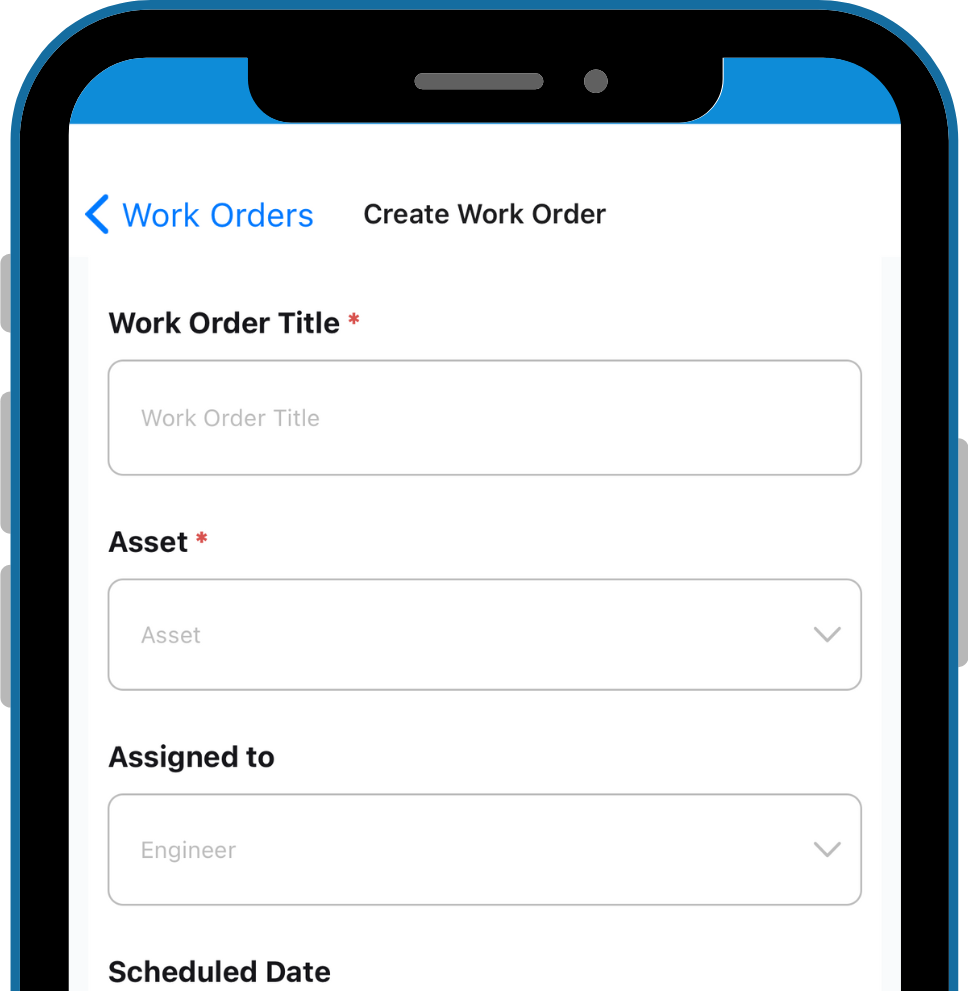
Follow these steps to create new work orders directly from your mobile app:
Navigation: Access the creation feature through the Work Orders/PM option within the Maintenance section of the mobile app.
Initiating Creation: Look for the plus symbol (+) on the right side of the screen and tap it to open the Create Work Order form.
Required Fields: You will notice several fields on the form; however, only those marked with a red asterisk are required.
Optional Fields: Although optional, completing additional fields can provide more detailed information about the work order.
No Approval Needed (New Feature): A key feature of CMMS Mobile is that work orders created through the app do not require approval to proceed. This change aims to enhance operational efficiency, especially for tasks that are resolved immediately on the spot.
Submission and Tracking: Once the form is filled out, submitting it will instantly list the work order under My Tasks or Work Orders/PMs, making it ready for immediate action and tracking.
Flagged Items - New Feature in CMMS Mobile
Introducing Flagged Items: A new feature in CMMS Mobile that enhances your preventive maintenance (PM) process. This feature aims to enhance the efficiency of maintenance tasks, ensuring critical issues are highlighted and addressed promptly.
Easily Flag PM Steps: While completing PM tasks, users can now flag specific steps within a PM for various reasons, such as the need for clarity or additional opinions.
Adding Comments for Context: Tap the comments button to add detailed comments to your flagged items. This helps clarify and ensures effective communication when the team reviews the flagged items.
Visibility of Flagged Items: Once a step is flagged, these items will appear to the right of equipment in either a pending or down status, making them easily accessible for review and action.
Duration of Flagged Items: Flagged items will remain visible for 30 days, giving ample time to review and resolve the flagged concerns.
QR Codes - New Feature in CMMS Mobile
Unlock the power of QR codes to streamline your asset management with CMMS Mobile. This will walk you through the multi-tiered process to get started.
Access QR Codes
To leverage QR codes for enhancing asset management, follow these initial steps:
Download QR Codes: Begin by downloading QR codes for selected or all assets within your facility.
Log into SpindleLIVE: Access your account on SpindleLIVE to proceed.
Navigate to CMMS Admin Assets: Once logged in, locate the CMMS Admin Assets option in the left sidebar navigation. This is your starting point for accessing and managing QR codes for your assets.
Choose a Print Option
With QR codes, you have flexible printing options. Select the method that best suits your operational needs:
Print QR Codes Individually
You can find the specific asset you need in SpindleLIVE and click on the Mobile QR Code icon next to the asset.
You now have the option to either scan the QR code directly from the screen or print it for physical use.
Print All QR Codes at Once
Navigate to the Gear icon located in the top right corner of SpindleLIVE.
Select "Print QR Codes" from the menu to initiate the printing of QR codes for all listed assets simultaneously.
Scanning QR Codes with Mobile App
Easily access asset details with a quick scan:
Navigate to Maintenance Page: On the main Maintenance page accessible via the option along the bottom of the app, locate the QR button in the lower right-hand corner.
Camera Permission: The first time you use this feature, the app may request permission to access your camera. Granting permission is necessary to proceed with scanning.
Scan QR Code: Point your camera so the QR Code is fully visible within the camera view. The app will automatically recognize the QR code.
Access Asset Details: Once the QR code is scanned, you will see an option along the bottom of the camera view to open the details page of the asset associated with the QR Code. This provides instant access to all relevant information.
This new feature enhances efficiency and accessibility, making asset management more streamlined and effective through QR codes.
Contact Spindle Support
Contact Spindle Support: On the SpindleLIVE website, click the Contact Us option in the Red Question Mark to access our Spindle Resource Center.
Spindle Resource Center: Provides easy access to our Spindle Help Center articles, virtual Onboarding for SpindleLIVE, missed Announcements, or Share Your Feedback with us.
Send a Request: If you want to submit a request now, please use this link: Submit a Spindle Support Request.
Comments
0 comments
Article is closed for comments.